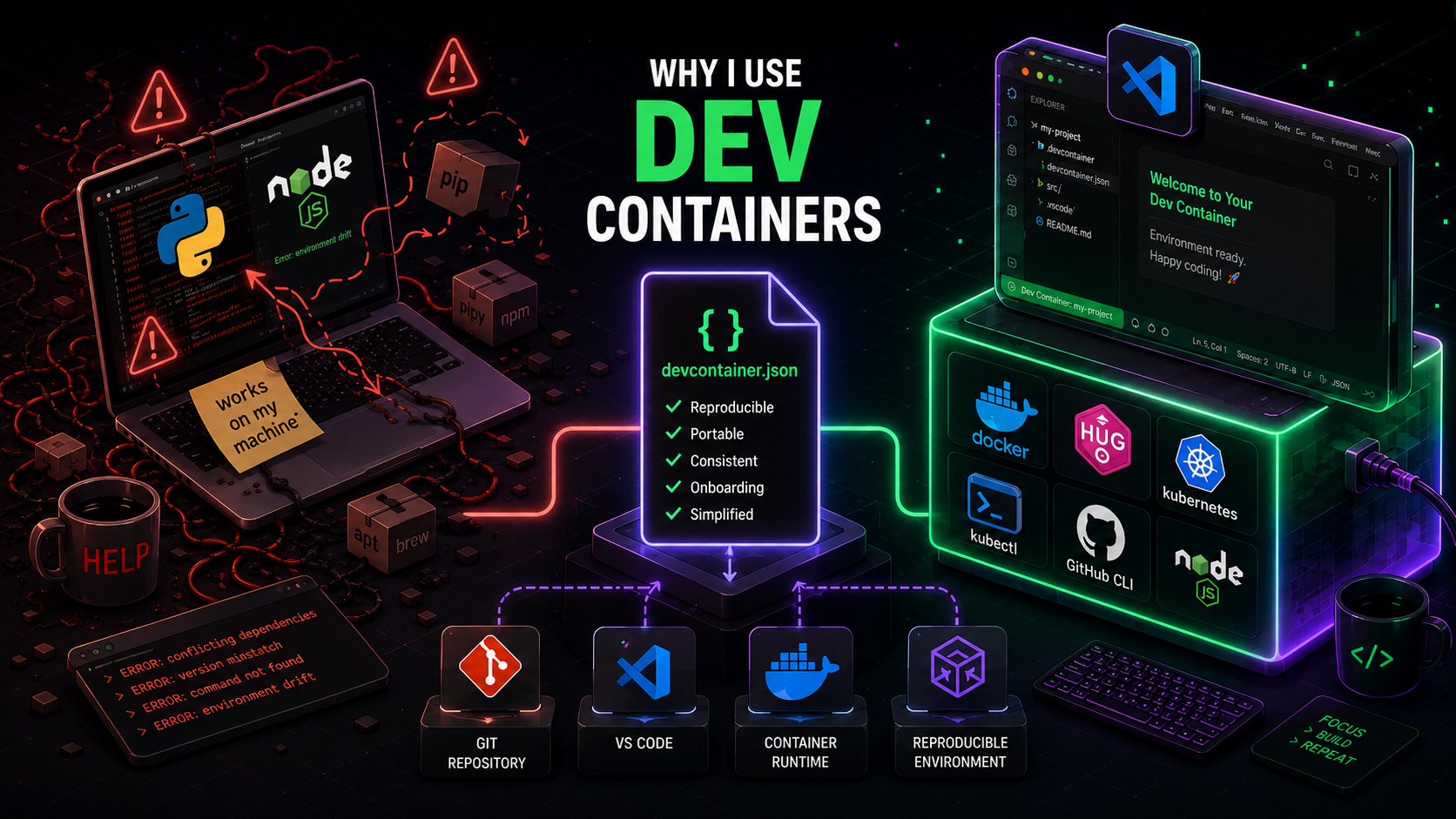
I keep coming back to dev containers because they remove a lot of the friction around setup, tooling drift, and “works on my machine” nonsense.
My rule is pretty simple: if a new project or idea requires me to install real tooling, it gets its own dev container.
Problem
I’ve been using dev containers since the early VS Code Remote Containers days, mostly because they solved a very real problem in the work I was doing at the time.
I was an automation solution architect, which meant building demos and proofs of concept that had to line up with whatever the customer needed. That usually meant moving between Python and JavaScript, often in the same project, and doing it fast enough to keep the demo moving.
Python was especially annoying. I would constantly run into Python 2 versus Python 3 confusion, and half the time I had to stop and check what version I was actually using. On top of that, library conflicts were everywhere. If I forgot to create or activate a venv, the environment would slowly turn into a mess. Unless something like direnv handled it for me, that usually happened eventually.
Installing tools directly on my laptop made things worse. Every new demo, every new POC, and every new dependency added more version clashes and more cleanup later. Reproducing the same setup on another machine was painful, and sharing an environment with a colleague or a customer was even worse.
That was the real problem: the work itself was already moving fast, and my local environment kept getting in the way.
Why It Matters
Dev containers took my pain away by letting me define the environment once and stop rebuilding it manually every time.
The repository became the environment contract:
- same tooling versions
- same CLIs and extensions
- ssame shell environment and bootstrap process
It also reduced the classic “works on my machine” onboarding problem. Instead of maintaining setup docs that slowly drift over time, new environments become mostly self-service.
For example, some of my projects need Hugo, Wrangler, Node.js, GitHub CLI, Kubernetes CLIs, and Codex installed together. I do not want that stack leaking into every machine I use.
Because the environment lives in the repository and runs in a container, it depends far less on whatever random tooling already exists on the host machine.
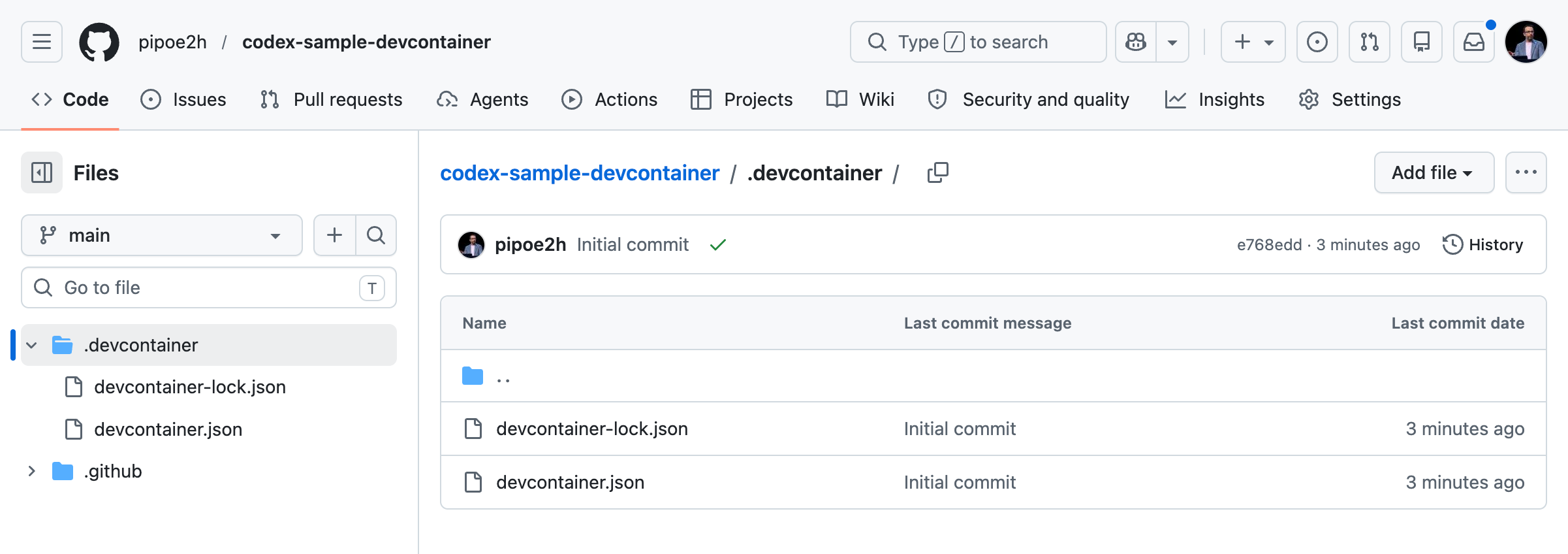
Another thing I ended up appreciating later is that the same dev container definition also works well in remote environments like GitHub Codespaces. Once the environment is defined properly, moving between local and remote development becomes much easier.
The Core Idea
What finally clicked for me was treating the environment as part of the project instead of something I manually rebuilt every time I changed machines or started a new demo.
Instead of treating setup as a separate tribal-knowledge step, the repo becomes the source of truth. The container image, the extensions, the shell tools, the language runtimes, and the startup behavior all live in one place.
That changes the workflow in a useful way:
- open the repo
- start the dev container
- get the same baseline environment every time
No guessing what is installed locally. No manually rebuilding the same setup for each project. No trying to remember which version of Python, Node.js, or some CLI tool that particular demo depended on.
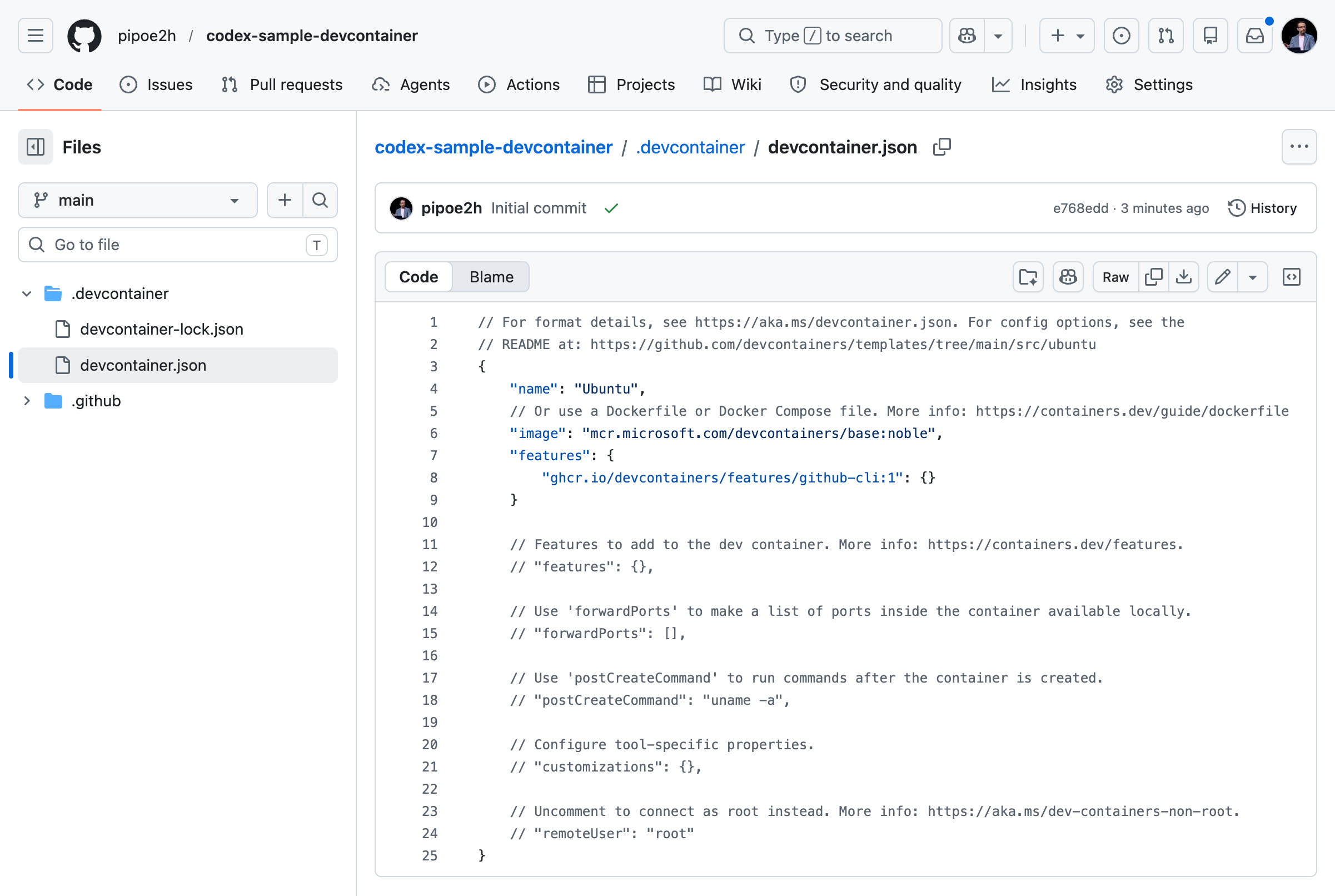
For me, that was the real value. The environment stopped being a side problem and became part of the project itself.
How I Use Them
A dev container keeps the environment isolated from the start. If I need Python, Node.js, CLIs, or anything else that could turn into version drift later, I prefer putting it in the container instead of polluting my laptop.
Not every project needs that. If it is just a simple HTML page with static JavaScript, I usually skip the dev container entirely. In that case, I just use a folder and run the Live Server extension in VS Code. That is enough for quick static work, and adding a container would just be unnecessary overhead.
The nice thing is that the dev container ecosystem has grown a lot. You can usually find something close to what you need already. If something is missing, you can add it in the Dockerfile or extend the setup in devcontainer.json.
flowchart LR
    repo[Git Repository]
    devcontainer[devcontainer.json]
    vscode[VS Code]
    runtime[Docker or Podman]
    environment[Development Environment]

    repo --> devcontainer
    vscode --> devcontainer
    devcontainer --> runtime
    runtime --> environment
To keep it simple, I also rely on a couple of basics:
- Dev Containers extension in VS Code
- A container runtime installed on the machine
Note: Dev Containers do not require Docker specifically. Anything implementing the container runtime interface properly, like Podman, can work too. (More details)
Once those pieces are in place, the workflow stays consistent across projects instead of changing every time I start something new.
What I Learned
The biggest thing I learned is that dev containers work best when you keep them boring.
1. Use Dev Container features
Use the features option as much as possible. It covers a lot of common setup without making you maintain everything yourself. If you need extra tools, check the features catalog first before you start writing custom installation steps.
2. Persistence is tricky
Persistence is the other thing to think about. Tools like GitHub CLI, Codex, or anything else that stores auth state only inside the container can require you to log in again after rebuilds, unless you mount that state or the tool integrates with host credential forwarding.
Your code is different. When you open a local folder in a dev container, the project itself is usually safe because it is bind mounted from the folder you started with, so the repository stays on disk even if the container goes away.
3. Clean up stale containers and volumes
One downside is that it is easy to accumulate orphaned containers and volumes over time. If you use dev containers a lot, it is worth checking cleanup every once in a while instead of letting old environments pile up.
Usually this is enough:
docker system prune -f
And sometimes:
docker volume prune -f
4. Reduce building time
If the dev container keeps rebuilding from scratch and it starts taking too long, then it is usually worth moving the static parts into a Dockerfile so Docker can cache them as layers. That keeps rebuilds more predictable and saves time when you are working on the same project repeatedly.
TL;DR
Dev containers save me from turning my laptop into a dependency graveyard.
They give me a reproducible environment, make onboarding easier, and keep demos and POCs from depending on whatever random tools I happened to install last week.
If a project needs real tooling, I start with a dev container. If it is just a static page, I keep it simple and skip it. You do not need to rebuild your entire workflow overnight.
Try it on the next project that requires Kubernetes tooling, Python, Node.js, cloud CLIs, or anything that normally pollutes your laptop. That is usually the point where dev containers immediately start making sense.
VS Code Dev Containers: https://code.visualstudio.com/docs/devcontainers/containers